
The Hidden History Behind an Email Signature in Apple Mail
After thirty years of wrangling with e-mail quirks, this is the simple method that finally made Apple Mail behave and it still makes me smile.

For something that looks so simple, e-mail is anything but. It’s old, fragile, and deeply strange. I’ve been working with it for about thirty years, and even now it surprises me. One of those surprises came recently, not from some complex server setup, but from something as trivial as a signature, the little block of text at the bottom of every e-mail.
For years I wondered: why is it so difficult to create a nice, consistent signature in Apple Mail? Something clean, with a logo, a bit of colour, the right typefaces. It felt like such a basic thing, yet whatever I tried, it always broke. Sometimes the spacing changed, sometimes the font jumped, sometimes images disappeared. I even bought external software just to get a “proper” signature.
It took me three decades to realise what was going on.
The RTF Years
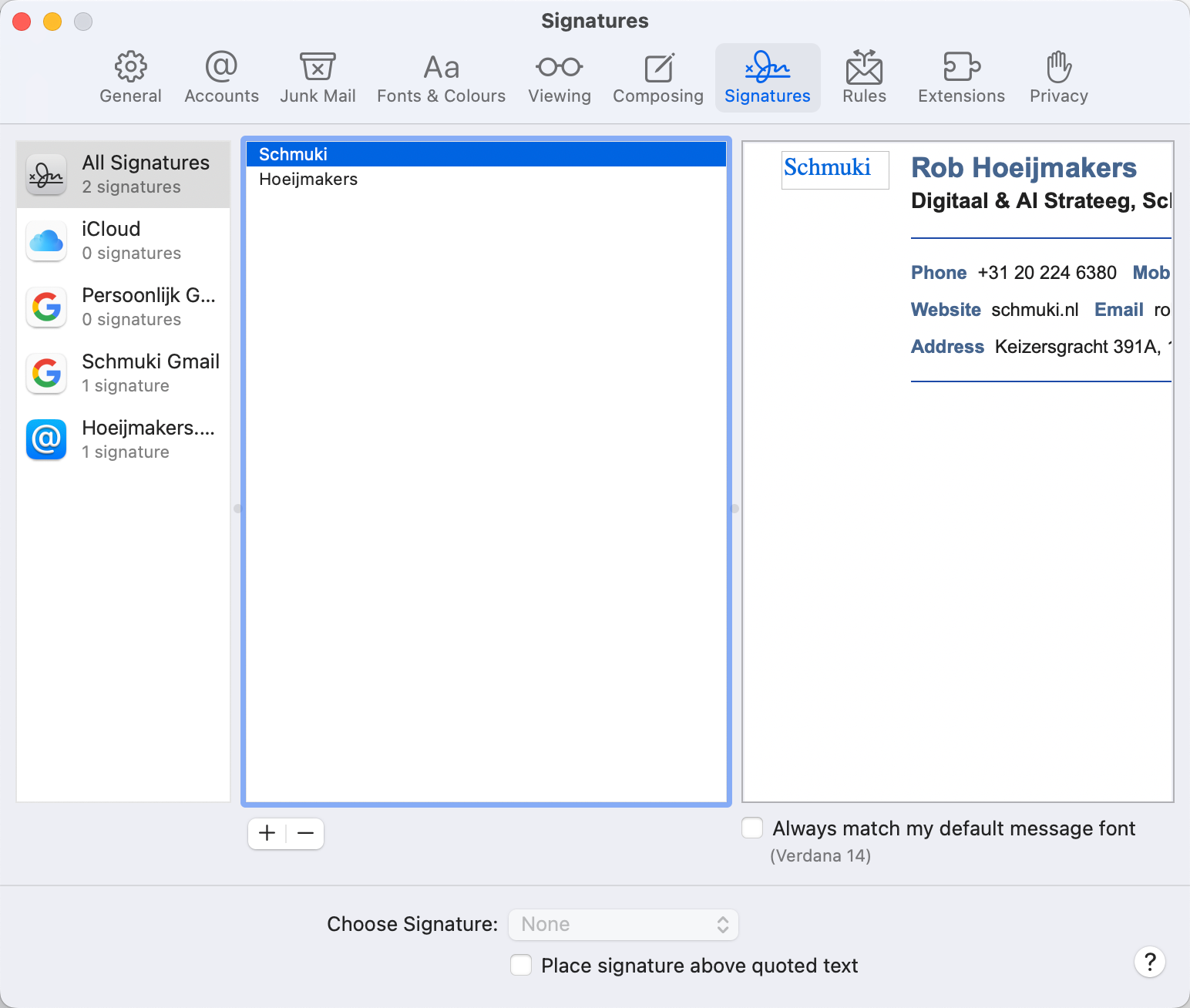
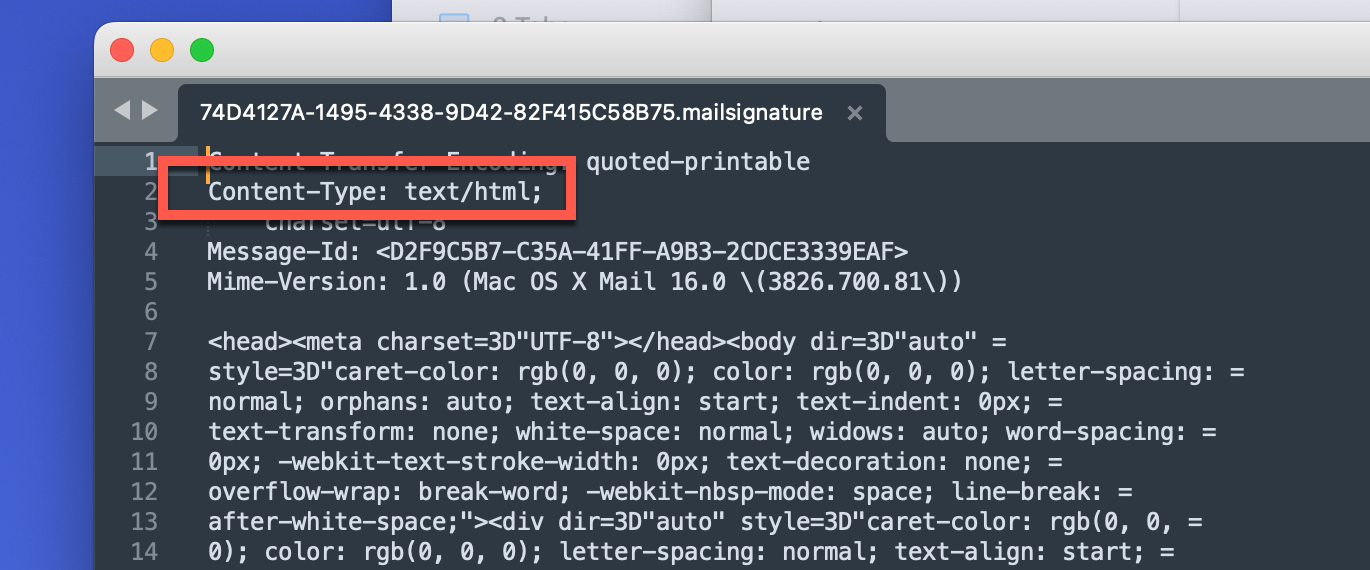
Apple Mail’s internal logic comes from another time. For a long period it didn’t really speak HTML, the language of the web. It spoke RTF, Rich Text Format, a relic from the pre-web desktop era. It looked like HTML, but it wasn’t. Under the hood, Mail stored your signature as a .mailSignature file, full of strange formatting codes that belonged to WordPad, not the web.
Only gradually did Apple transition from RTF to HTML. Today, Mail fully supports HTML for composing and rendering messages, but oddly enough, in the interface it still says Rich Text. That one small word caused years of confusion for me. I assumed I had to create RTF content but not HTML.
Once I realised the opposite was true, the whole thing clicked into place.
The HTML Revelation
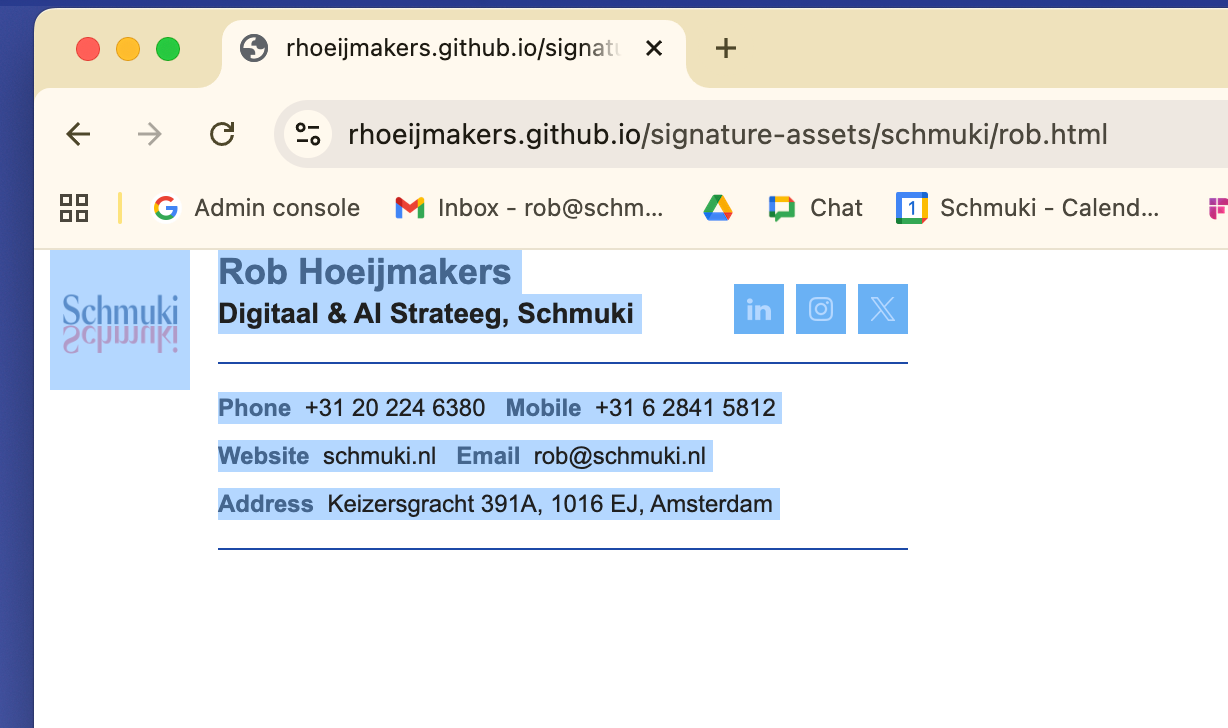
So now I could just create an HTML page that represented my signature.
Design it however I wanted: proper CSS, proper layout, real web code. Then open it in a browser, select everything (not the code, but what you see) and paste it straight into Mail’s signature field.
That’s it. Except, of course, it isn’t.
E-mail clients are notoriously inconsistent. What works in one might break in another. Inline styles, absolute URLs, no external fonts because the HTML has to be “simplified” in a very specific way. But once you know that, it becomes manageable. Especially with ChatGPT, which now acts like a surprisingly capable HTML assistant that understands the oddities of Outlook, Gmail, and Apple Mail alike.
The Safari Trap
Then came the funny part. My workflow involves both Safari and Chrome. I built the signature, tested it, copied it from the browser into Mail and it looked perfect. A small miracle. Later, without thinking, I opened the same HTML file in Safari, copied again, pasted again… and suddenly everything was broken. Images gone, layout distorted, back to square one.
After some head-scratching, I discovered the cause: Safari doesn’t copy raw HTML into the clipboard. It creates a web package, that is a kind of bundle with local image references. Those local references don’t survive the trip into Apple Mail. In other words: Safari sabotaged my signature. Chrome, on the other hand, behaves like a proper web browser and copies the rendered HTML cleanly.
So there it was, the mystery solved! After all these years, the trick to making a perfect Apple Mail signature was not an app, not a script, but a simple rule: use Chrome, not Safari.
Why This Still Matters
It’s a small, almost comical discovery. Yet it says something about how old technologies evolve: slowly, unevenly, full of quirks that only reveal themselves through experience. E-mail is a living fossil of the Internet but still running on protocols designed decades ago, still patched and layered over. And now, thanks to modern AI tools, even these ancient corners of the web can be explored with fresh eyes.
That’s what I like most about this little story. It’s not really about signatures. It’s about the quiet satisfaction of finally understanding something that’s been bugging you for years and the strange new fact that I solved it with help from ChatGPT.
Small progress, perhaps. But deeply satisfying.
How to Create an HTML Signature for Apple Mail
Here’s the practical recipe that actually works — stripped to the essentials.
Create your signature as a small HTML page.
- Keep it narrow (around 600 px wide).
- Use inline CSS styles only.
- Use absolute URLs for all images (e.g.
https://example.com/logo.png).
Open the HTML file in Chrome.
- Don’t use Safari; it converts clipboard data into a web package that breaks image references.
Select everything you see (not the source code) and copy.
Open Apple Mail → Settings → Signatures.
- Create a new signature, clear the content, and paste what you copied. Make sure to uncheck the tick box that says: Always match my default message font.
Test it.
- Send yourself a message and check it in different clients (Mail, Gmail, Outlook).
- If something looks off, simplify your HTML and re-test.
Tip:
ChatGPT can generate or simplify HTML for e-mail clients if you ask it to “make it Apple Mail compatible”. It understands most of the quirks and saves hours of trial and error.